Add a server
Join another server to the cluster over SSH.
Before you start
The new server needs:
- Linux with systemd, and root or passwordless
sudo; curl, enough CPU, memory and free disk, and no k3s installed;- outbound internet access to install k3s;
- a route to the first server's Kubernetes API (
6443/tcp).
Open these ports between the servers:
| Port | Needed by |
|---|---|
10250/tcp | every server (kubelet) |
8472/udp, 4240/tcp | every server (Cilium) |
6443/tcp, 2379-2380/tcp | control-plane servers |
Prepare SSH access
The console connects to the new server over SSH with a private key, as root
or as a user with passwordless sudo. Create a key for this on your own
computer.
1. Create a key
ssh-keygen -t ed25519 -f ~/.ssh/acceleratio -C acceleratioThis writes the private key to ~/.ssh/acceleratio and the public key to
~/.ssh/acceleratio.pub. You can leave the passphrase empty, or set one and
enter it in Key passphrase later.
2. Allow the key on the new server
If you can already sign in to the new server with a password, copy the public key with:
ssh-copy-id -i ~/.ssh/acceleratio.pub root@203.0.113.11Otherwise, print the public key on your computer:
cat ~/.ssh/acceleratio.pubthen, on the new server (for example through your provider's web console),
add it to the user's authorized_keys:
mkdir -p ~/.ssh && chmod 700 ~/.ssh
echo 'ssh-ed25519 AAAA... acceleratio' >> ~/.ssh/authorized_keys
chmod 600 ~/.ssh/authorized_keys
Replace ssh-ed25519 AAAA... acceleratio with the whole line you printed.
3. Use a user other than root (optional)
A user other than root needs passwordless sudo. On the new server, for a
user named deploy:
echo 'deploy ALL=(ALL) NOPASSWD:ALL' | sudo tee /etc/sudoers.d/acceleratio
sudo chmod 440 /etc/sudoers.d/acceleratio
sudo visudo -cf /etc/sudoers.d/acceleratio
4. Check the connection
From your computer:
ssh -i ~/.ssh/acceleratio root@203.0.113.11 'sudo -n true && echo ok'It prints ok when the key works and sudo needs no password.
5. Note the host key fingerprint
On the new server, print its SSH host key fingerprints, to compare with the
one the console shows (SHA256:...). It must match one of them:
for key in /etc/ssh/ssh_host_*_key.pub; do ssh-keygen -lf "$key"; done6. Copy the private key
cat ~/.ssh/acceleratioCopy everything it prints, including the -----BEGIN OPENSSH PRIVATE KEY-----
and -----END OPENSSH PRIVATE KEY----- lines, into Private key.
Keep the public key on the server if you want the console to uninstall k3s
when you remove the server later.
Otherwise you can delete its line from authorized_keys once the server is
added.
Add
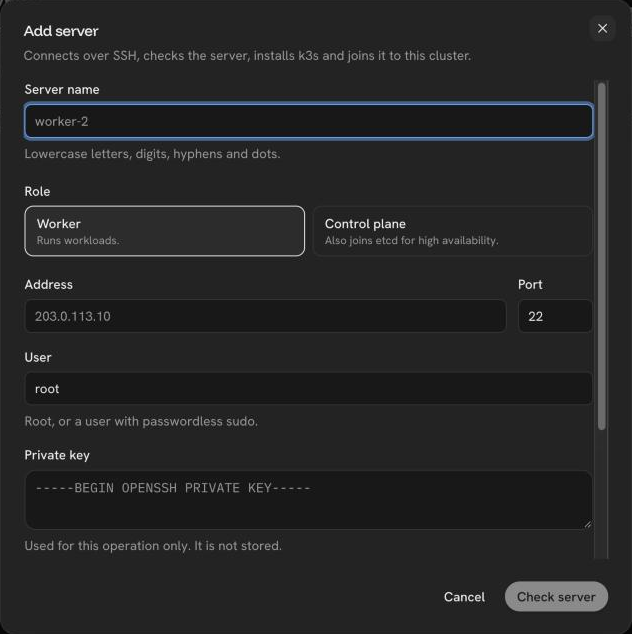
- On Servers, choose Add server.
- Enter a name and a role, then the server's Address, SSH Port, User, Private key and, if the key has one, Key passphrase. The key is used for this operation only and never stored.
- Compare the shown SSH host key fingerprint with the one you printed on the server. Adding pins this key, so the cluster's join token is only sent to the server you checked.
- Check server checks the requirements; then the console installs k3s at the cluster's version and waits for the server to be Ready.
Was this page helpful?
Last updated on