Storage profiles
Choose how volumes keep their data.
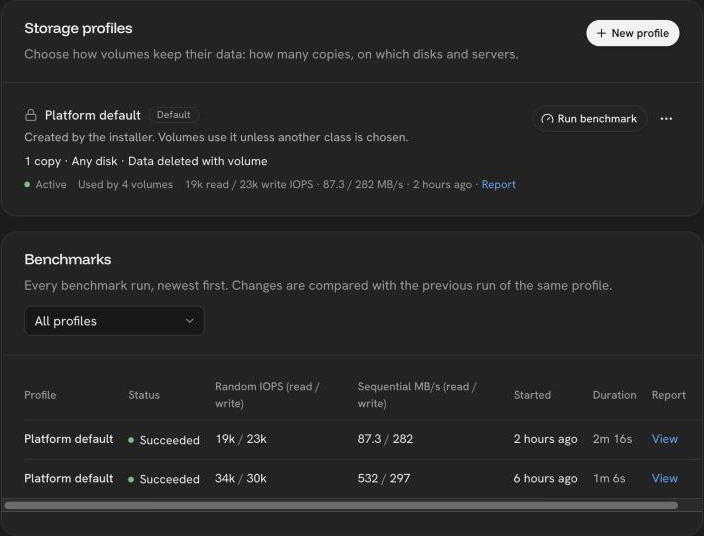
A storage profile decides how many copies of a volume are kept, and on which disks and servers. Manage profiles in Settings → Storage. The installer creates the Platform default profile, with one copy per volume.
Settings
| Setting | Choices |
|---|---|
| Copies | 1 copy; 2 or 3 copies on different servers |
| Disks | Any disk, SSD, HDD, or custom disk tags |
| Servers | Any server, or only servers with given tags |
| Placement | Keep a copy next to the service when possible; place copies on any server; always one copy on the service's server |
| File system | ext4 or XFS |
| When a volume is deleted | Delete its data, or keep it |
| Volumes can grow | Whether volumes can be enlarged after they are created |
Copies
| Copies | Survives | Cost |
|---|---|---|
| 1 | No server failure | Fastest, least disk |
| 2 | One server failure | Every write waits for the network; 2× disk |
| 3 | Two server failures | Slowest writes; 3× disk |
More copies need as many servers and a fast, dedicated network between them.
Profiles that keep data after a volume is deleted cannot back service volumes.
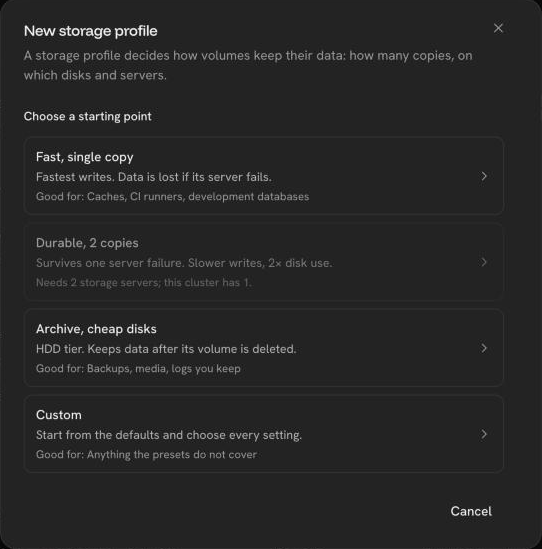
New profile starts from a preset (fast single copy, durable 2 copies, archive on cheap disks) or from Custom, or duplicate an existing profile.
Deleting a profile leaves existing volumes as they are; new volumes can no longer pick it.
Benchmarks
Run benchmark measures how fast volumes with a profile read and write. It runs fio for about 2 minutes: large sequential reads and writes, then small (4 KiB) random reads and writes, and reports throughput, IOPS and latency. The test puts real load on the storage servers.
Every run is kept, newest first, and compared with the previous run of the same profile.
Was this page helpful?
Last updated on